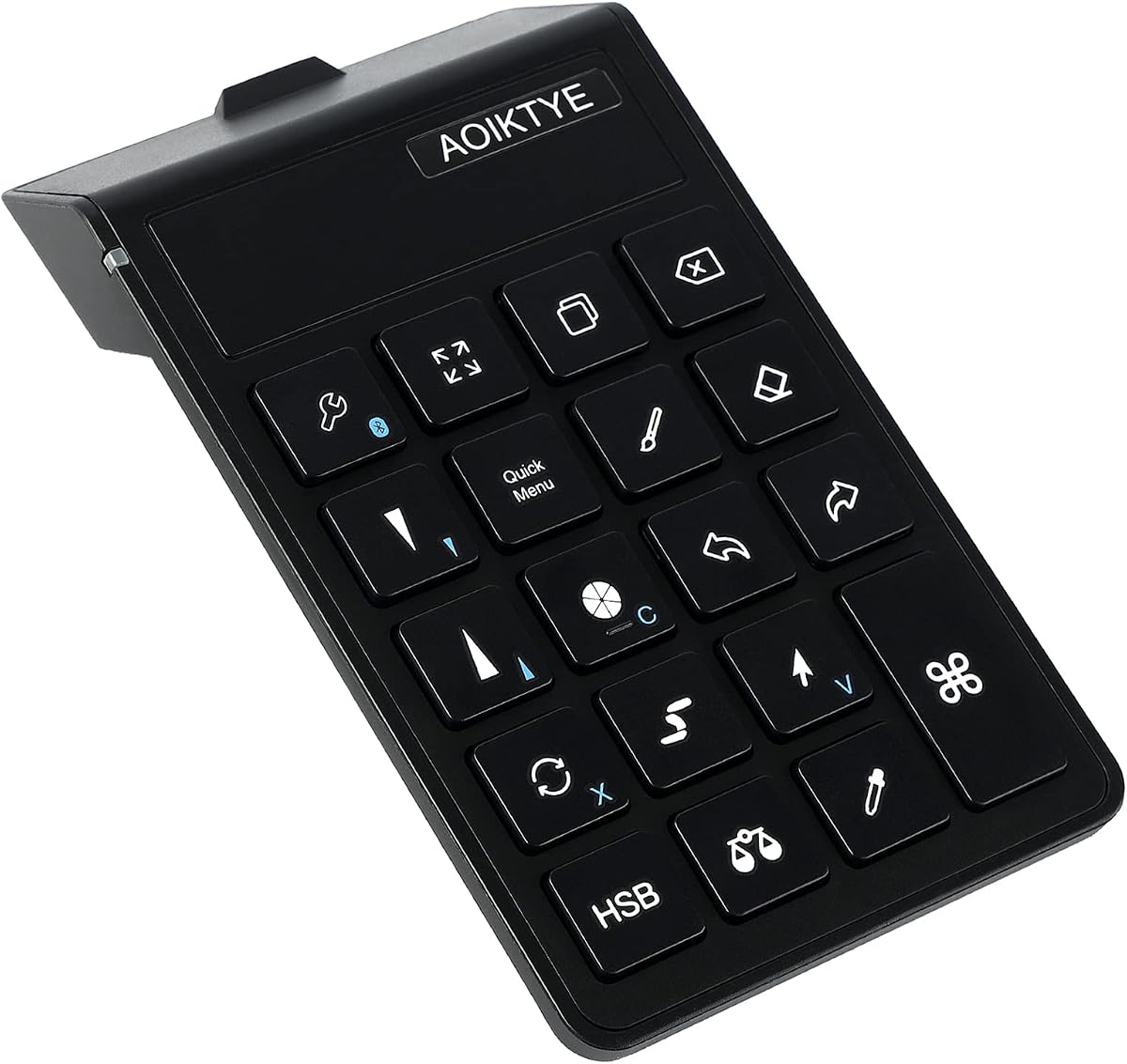
Keyboard for Procreate, 22 Shortcut Keys Wireless Keyboard for iPad Digital Drawing
4.5Editor score
22 Shortcut Functions
84 Hour Battery Life
Ergonomic Design
This guide compares the top 10 iPad Drawing Bluetooth Controller options for digital artists. We analyze features, compatibility, and performance to help you
Digital artists seeking efficiency on their iPad need reliable tools to streamline their workflow. A dedicated Bluetooth controller offers a solution by providing programmable keys and dials for quick access to essential shortcuts while drawing or editing.
We have evaluated ten top-rated controllers specifically designed or adaptable for use with iPads and creative software. Our analysis focuses on connectivity, customization options, battery life, and ergonomic design to ensure a productive experience.
Each selection in this list highlights unique strengths for different creative needs. Please note that pricing and availability may fluctuate. We recommend checking the current listings on Amazon before making your final purchase decision.
4.5Editor score

4.2Editor score

5.0Editor score
The following comparison table summarizes the key specifications and features of the top ten controllers available for iPad users. This side-by-side overview helps you quickly identify the model that best fits your specific drawing and editing requirements.


The HUION Keydial Mini stands out as a robust solution for digital artists needing more control on their iPads. It features an excellent rating for its versatile functionality and sturdy build quality. The combination of 18 programmable keys and a rotary dial offers extensive shortcut access.
We may earn a commission when you buy through this link, at no additional cost to you.
Its Bluetooth 5.0 connection ensures stable performance up to 10 meters. This wireless freedom allows artists to move around their workspace without tethering cables. The anti-ghosting performance supports multi-key inputs which is vital for complex drawing operations.
While customization requires installing the Huion driver on supported devices, the setup is straightforward. The setting preview button helps users recall assigned functions without memorizing complex shortcuts. This feature significantly reduces friction during intensive creative sessions.
We recommend this controller for professionals who use a variety of creative software. Its broad compatibility with Photoshop and Illustrator makes it a valuable addition. It balances portability with professional-grade features effectively.
The programmable keys allow for rapid access to tools like zoom and layer switching without interrupting your creative flow.
The rotary dial can be configured for multiple functions such as brush size adjustment or timeline navigation depending on your needs.
We may earn a commission when you buy through this link, at no additional cost to you.
This wireless keyboard is tailored specifically for Procreate users on iPad. It offers an impressive set of shortcut keys that map directly to essential drawing functions. The high user rating reflects its reliability and ease of use in daily workflows.
We may earn a commission when you buy through this link, at no additional cost to you.
The standout feature is its extended battery life which lasts up to 84 hours on a single charge. This ensures that artists can work for weeks without needing to recharge frequently. The USB-C charging adds convenience for modern users.
Although it does not offer deep customization like full programming it covers the most essential functions efficiently. The ergonomic design reduces hand strain during long drawing sessions. It is an excellent choice for those focused on Procreate.
We suggest this product for hobbyists and professionals using Procreate exclusively. It provides a cost-effective way to boost productivity without complex setup. It is also a great gift option for artists.
The keys are placed to match common Procreate gestures reducing the need to reach for the screen during critical editing tasks.
With over three days of continuous use the battery performance supports uninterrupted creative sessions without worry.
We may earn a commission when you buy through this link, at no additional cost to you.
The DIGIDRAW K30 represents a high-end option for artists who demand precise control. It features dual dials which are rare in this category allowing for simultaneous adjustments. The perfect user rating indicates exceptional quality and performance.
We may earn a commission when you buy through this link, at no additional cost to you.
Its lightweight design makes it effortless to hold for long periods without fatigue. The tactile markers on each key allow users to locate controls by touch alone. This keeps eyes focused on the canvas for better creative flow.
While it comes at a premium price the dual dial functionality justifies the cost for serious professionals. The battery life is substantial offering 40 hours of continuous use. It supports major creative software effectively.
This controller is ideal for advanced users working on complex projects. It offers a level of refinement that enhances efficiency significantly. The investment pays off through improved workflow speed.
Having two dials allows you to control brush size and zoom simultaneously speeding up detailed editing work.
Raised markers ensure you can press keys accurately without looking away from your artwork.
We may earn a commission when you buy through this link, at no additional cost to you.
This remote offers a unique trackpad feature that mimics a mouse cursor on your iPad screen. While not specialized for drawing shortcuts it excels at navigation and media control. The Bluetooth connection is stable for general use.
We may earn a commission when you buy through this link, at no additional cost to you.
It functions well for presentations and general app navigation alongside creative work. The ability to switch apps using the home button adds convenience. It is a versatile tool for managing content on an iPad.
For pure drawing efficiency it lacks the dedicated shortcut keys found in other models. However its price point makes it an accessible entry-level option. Users needing general control may find it sufficient.
We recommend this for users needing general navigation control rather than artistic shortcuts. It is useful for streaming content or managing desktop tasks remotely. It serves as a flexible peripheral.
The trackpad allows precise cursor movement which helps in selecting tools quickly without touch errors.
We may earn a commission when you buy through this link, at no additional cost to you.
XPPen offers a reliable option with a massive 300-hour battery life. This ensures long-term use without frequent recharging. The compact form factor makes it easy to carry in a bag for travel. It supports Bluetooth and USB-C connection options.
We may earn a commission when you buy through this link, at no additional cost to you.
The rotary dial provides smooth control for zooming and rotating canvases. Users can customize up to forty shortcuts across four different sets. This flexibility supports multiple applications effectively. The anti-ghosting feature ensures accurate input.
While the keys are small they are well spaced for comfort. The design won a Good Design award reflecting its quality. It is particularly useful for tablet and desktop users alike.
This device is great for artists who switch between devices frequently. The battery performance reduces maintenance significantly. It is a dependable tool for various creative tasks.
With months of use between charges this battery eliminates anxiety about running out of power mid-project.
We may earn a commission when you buy through this link, at no additional cost to you.
This controller is designed for gamers but can be adapted for drawing control on tablets. It supports keyboard and mouse emulation which is rare for a standard controller. The wireless connection provides freedom of movement across different devices.
We may earn a commission when you buy through this link, at no additional cost to you.
Its compatibility with multiple systems makes it a flexible choice for diverse setups. Users can map buttons to specific actions for navigation. However software support for drawing apps may require additional configuration.
The ergonomic design ensures comfort during long sessions. While not optimized specifically for artists it offers a low-cost alternative for general control. It is best suited for hybrid users.
We suggest this for users who play games and draw. It is a versatile peripheral that covers both needs broadly. Configuration is needed for creative apps.
The ability to switch modes allows this device to serve as both a gamepad and a creative navigation tool.
We may earn a commission when you buy through this link, at no additional cost to you.
The TourBox Lite offers a refined interface for creative professionals. It features a simplified layout that reduces the need to memorize shortcuts. The design is aesthetically pleasing and fits well in modern workspaces.
We may earn a commission when you buy through this link, at no additional cost to you.
It automatically detects active software and switches profiles accordingly. This seamless transition saves time during workflow. The ergonomic shape supports long editing sessions comfortably. It is built for daily creative tasks.
While it costs more than basic remotes the software integration is superior. It supports popular apps like Photoshop and Clip Studio Paint. The preset options make it accessible immediately.
This controller is perfect for designers who value speed and comfort. The investment is worthwhile for frequent users. It enhances workflow with smart features.
The automatic app detection ensures you always have the correct controls ready without manual switching.
We may earn a commission when you buy through this link, at no additional cost to you.
This controller is optimized for physical interaction on tablets. It features Hall Effect sticks for long durability and precise movement. The universal fit supports many modern iPad models directly without extra clips.
We may earn a commission when you buy through this link, at no additional cost to you.
Motion sensing capabilities add a new dimension to control options. It is a robust device for gaming and general use. The customization options allow for personalization of buttons and look.
Drawing capabilities are limited to general navigation functions. However it offers excellent hardware quality for the price. It serves best as a general-purpose gaming controller.
We recommend this for gamers who also use tablets for other tasks. It offers high-end features like Hall Effect technology. It is durable and adaptable.
Hall Effect technology ensures magnetic switching which prevents stick drift common in cheaper controllers.
We may earn a commission when you buy through this link, at no additional cost to you.
This device is specifically designed to enhance Clip Studio Paint on iPad. It offers direct access to frequently used operations within the app. The inclusion of a software license adds significant value for new users.
We may earn a commission when you buy through this link, at no additional cost to you.
Its Bluetooth 5.1 connection provides a stable link for consistent performance. The compact design ensures it does not interfere with drawing space. It is an official accessory that integrates smoothly.
Users need to purchase AA batteries separately which is a minor inconvenience. The software focus means it is less useful for other apps. It is ideal for dedicated CSP artists.
We suggest this for those committed to Clip Studio Paint workflow. The seamless integration reduces friction in the creative process. It is a specialized tool that delivers.
Being an official accessory ensures maximum compatibility and performance with the software.
We may earn a commission when you buy through this link, at no additional cost to you.
The Wacom Intuos is a drawing tablet rather than a remote but offers unmatched pen control. Its pressure sensitive pen feels like real paper providing a natural drawing experience. It connects wirelessly to your iPad or computer.
We may earn a commission when you buy through this link, at no additional cost to you.
Included software and training help users get started quickly. It supports all major creative programs effectively. The compact size makes it portable for different workspaces. It is a standard for digital art.
While it does not provide shortcut keys it offers the primary input method. The battery free pen eliminates charging needs. It is a fundamental tool for artists.
We recommend this for those starting out or needing precision drawing. It is a reliable and versatile platform for creativity. It ensures quality input for your work.
The EMR technology ensures a battery free pen that feels natural and responsive.
We may earn a commission when you buy through this link, at no additional cost to you.
Selecting the right Bluetooth controller for your iPad involves understanding your specific workflow needs. This guide covers key factors to consider before making a purchase.
Bluetooth 5.0 is recommended for stable connections up to 10 meters. This ensures no lag during critical drawing moments.
Look for reliable wireless protocols that maintain speed and stability across your workspace.
Programable keys allow you to map shortcuts for brush sizes or layers. More keys offer greater flexibility.
Ensure the software supports deep customization to match your unique workflow.
Long battery life reduces interruptions. Models with 40+ hours are preferable for professional work.
USB-C charging is a standard feature to ensure quick recharging cycles.
An ergonomic design prevents hand fatigue during long sessions. Look for lightweight and comfortable grips.
Consider the size of the device to ensure it fits well with your hand.
Check if the controller works with your primary drawing apps like Procreate or Photoshop.
Some controllers have specific optimizations for certain software which enhances performance.
Durable materials ensure the device lasts longer. Look for sturdy buttons and reliable construction.
High-quality build reduces the risk of accidental damage during daily use.
Simple pairing processes save time. Check if the device supports automatic detection or quick sync.
User-friendly apps for configuration make customization easier for all skill levels.
Prices vary based on features and branding. Determine what features are essential for you.
Invest in a device that offers the best balance of features and affordability.
Begin by charging the controller fully before first use to ensure optimal battery health. Pair it with your iPad via Bluetooth settings following the manufacturer's instructions.
Install any necessary companion apps on your device to unlock full customization features. This allows you to map keys to your preferred shortcuts efficiently.
Clean the surface of the controller regularly with a soft cloth to maintain functionality. Avoid exposing it to extreme temperatures or moisture to prolong its lifespan.
Not all controllers require drivers. Some models work with plug-and-play functionality while others need specific software to access customization features. Always check the product description.
Most Bluetooth controllers are compatible with all iPad models supporting Bluetooth connectivity. However specific optimizations may apply to newer iPad Pro models.
Yes many controllers work on iPadOS via Bluetooth. Ensure the device supports iOS or iPadOS for seamless integration with apps.
Most modern controllers use USB-C charging ports. Check the manual for specific charging times and recommended power sources to maintain battery health.
Many models are symmetric and support both left and right-handed use. Always verify the ergonomic design before purchase if handedness is a factor.
Reset the Bluetooth connection and restart the device. Check for software updates in the companion app to resolve connectivity issues.
Some controllers offer dual functionality for drawing and gaming. Check compatibility with game platforms to ensure they support your needs.
We have reviewed ten diverse options to help you find the perfect match for your creative needs. From the versatile HUION Keydial Mini to the specialized Clip Studio Tabmate 2 there is a choice for every artist.
Prioritize features that matter most to you such as battery life or software integration. A well chosen controller can significantly enhance your productivity and comfort.
Always check current prices and availability before buying to ensure you get the best deal. We hope this guide helps you make an informed decision for your digital art setup.